Master the Manual Takeoff Tool
Built for estimators and project teams who need fast, accurate takeoffs without heavy software. Upload plans, mark areas and lengths, and export clean totals. It also supports live collaboration—multiple users can work in the same project at once and see each other’s changes in real time.
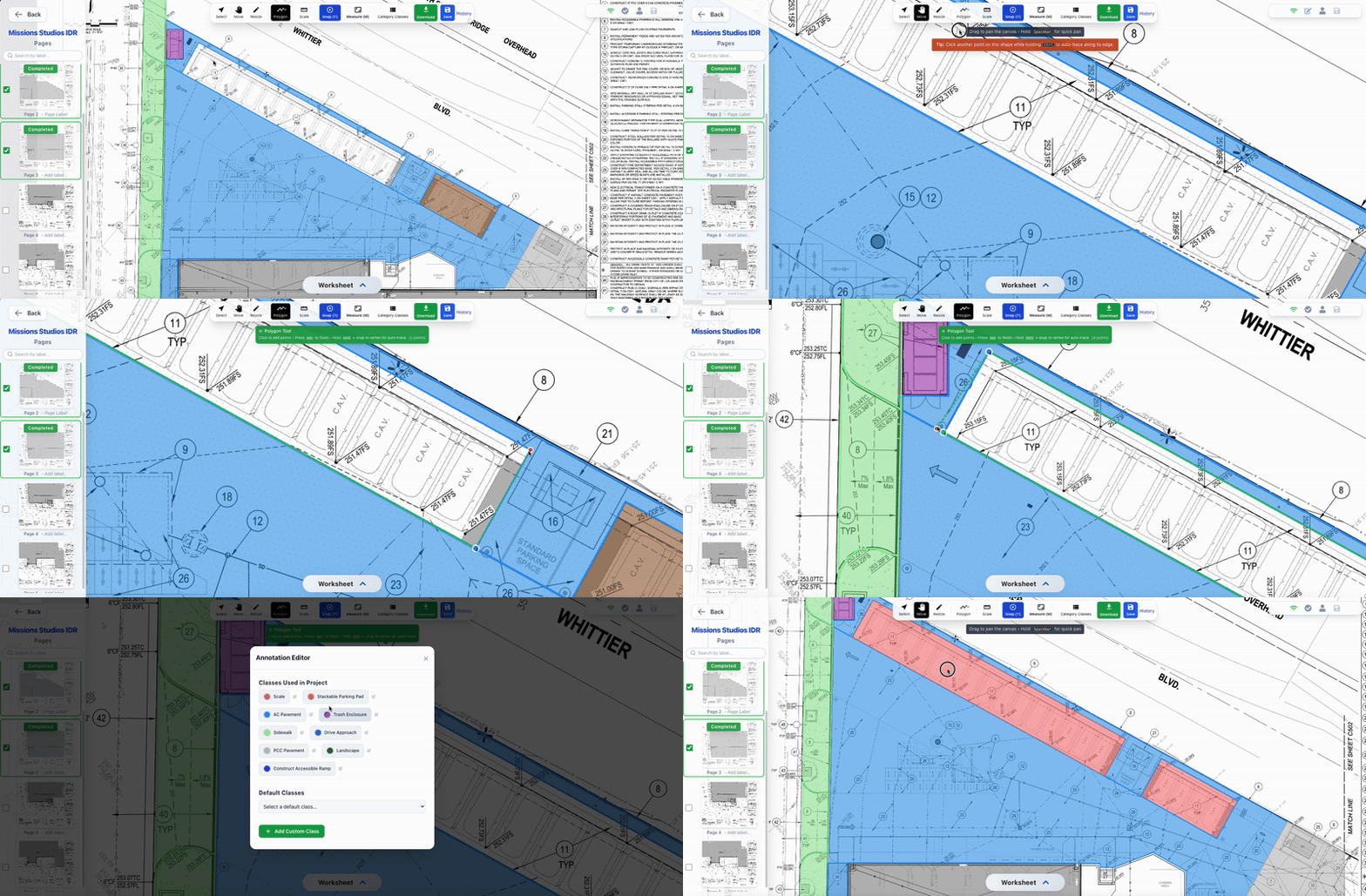
Polygon Tool
Outline any area on the plan. Add or move points, keep lines straight, and see area measurements update as you go.
- Add, move, or delete points
- Snap to edges and endpoints
- Keep lines straight when needed
- Live area (SF or m²) and perimeter
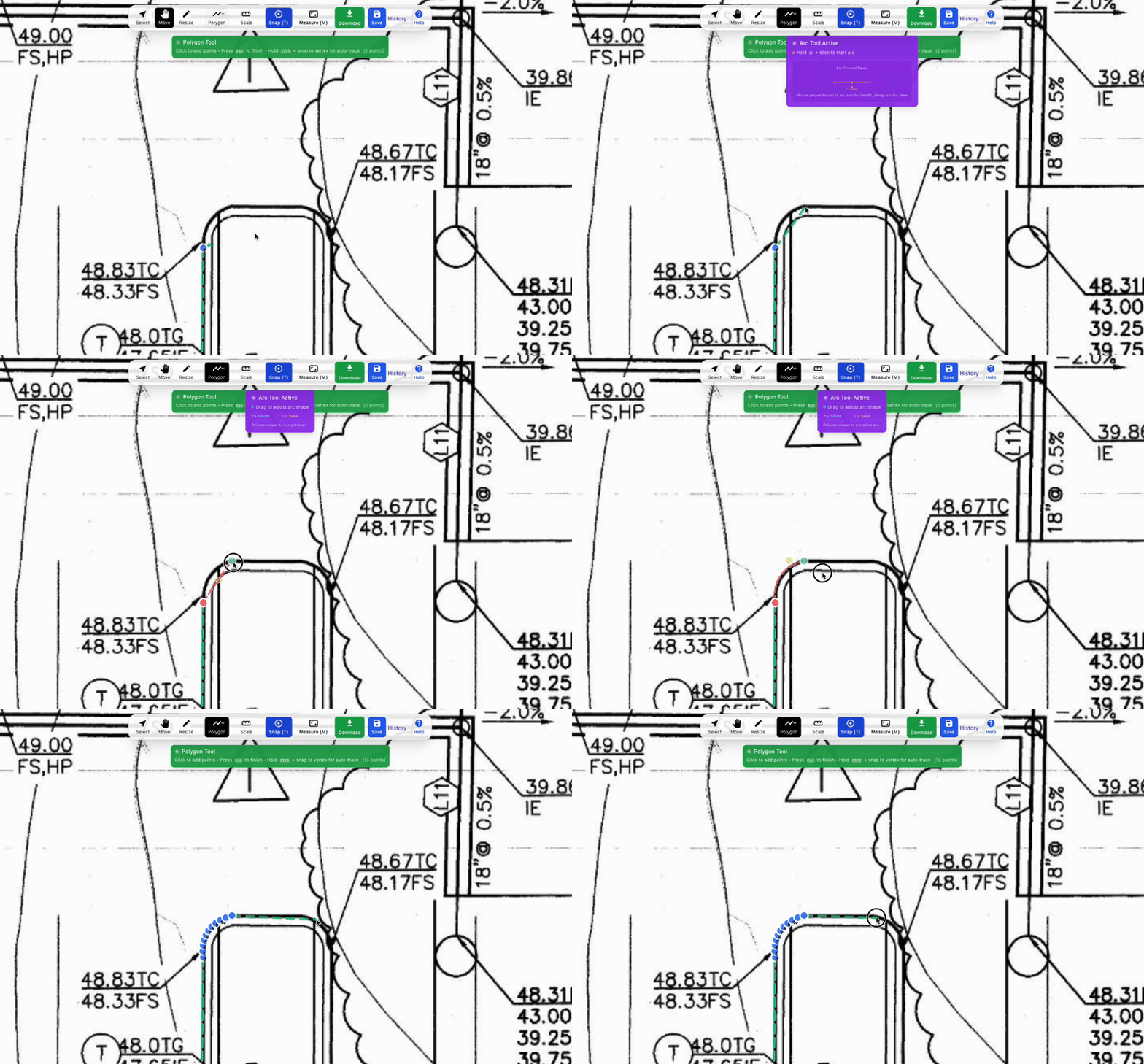
ARC Tool
Add curved segments to your polygons and lines. Hold A while drawing to activate arc mode, then click two points and drag to adjust the curve.
- Hold A to activate arc mode
- Click two points to create arc
- Drag mouse to adjust height and skew
- Works with both Polygon and Line tools
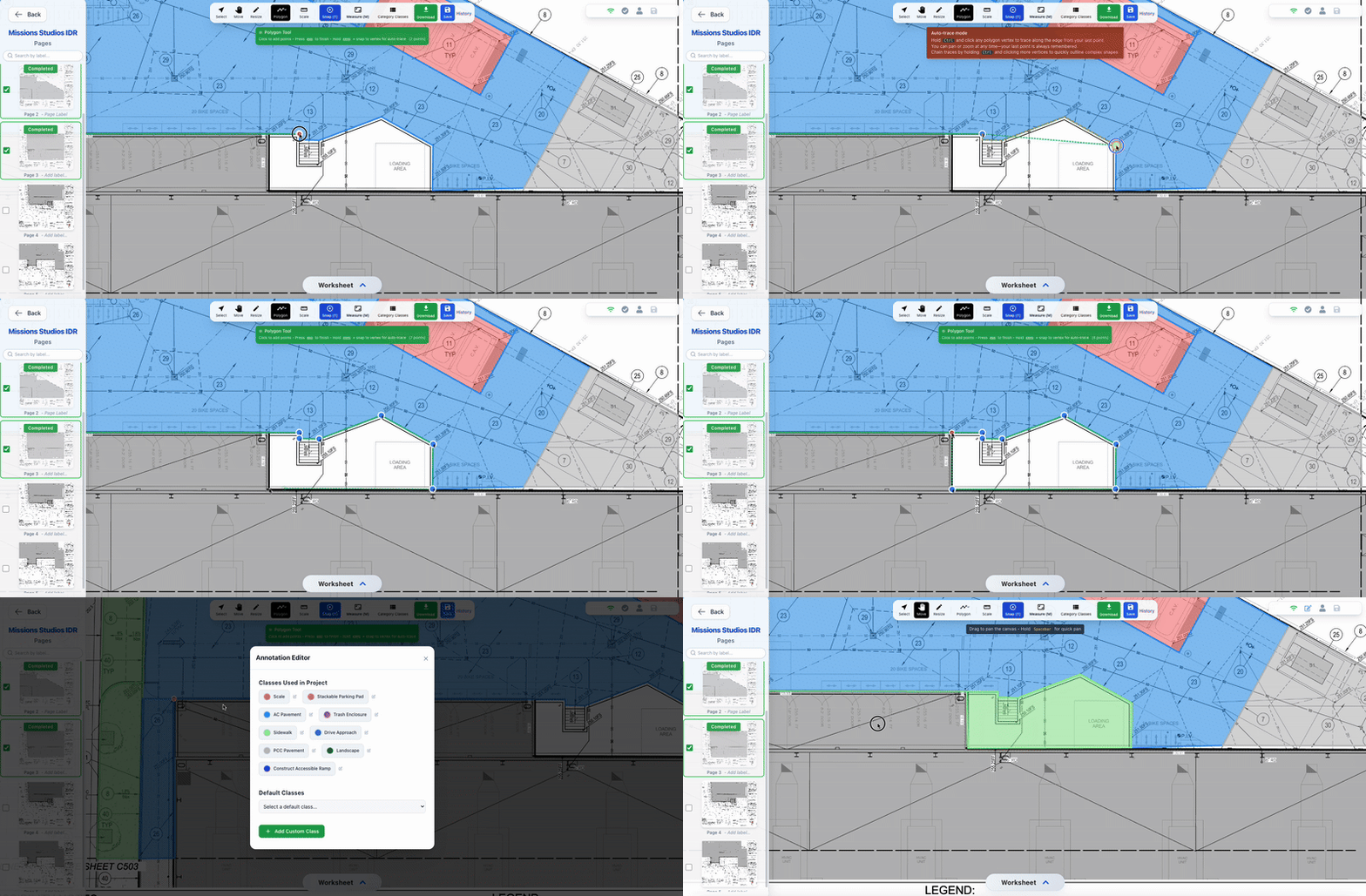
Auto‑Trace
Click along an edge and let the tool follow the line for you. Clean outlines on curbs, walls, and building edges in a fraction of the time.
- Follows clear edges on the plan
- Edit points after tracing
- Works hand‑in‑hand with Polygon
- Great for detailed sheets
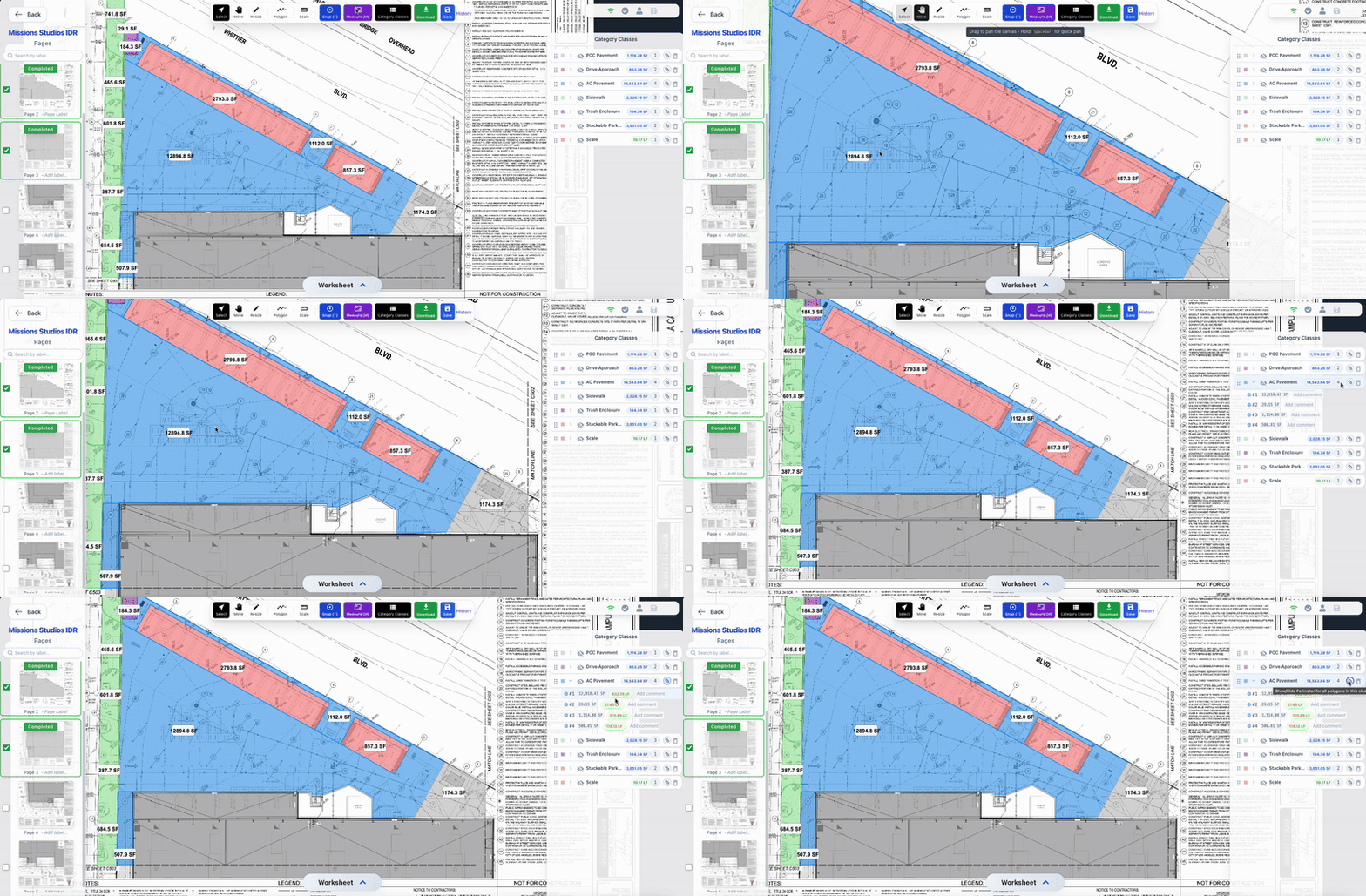
Measurements
Measure a single run or several segments in a row. The total updates live and snaps help you hit exact endpoints.
- Single or multi‑segment runs
- Live total length
- Snaps to endpoints
- Ideal for curb, pipe, and edges
Scale Setup
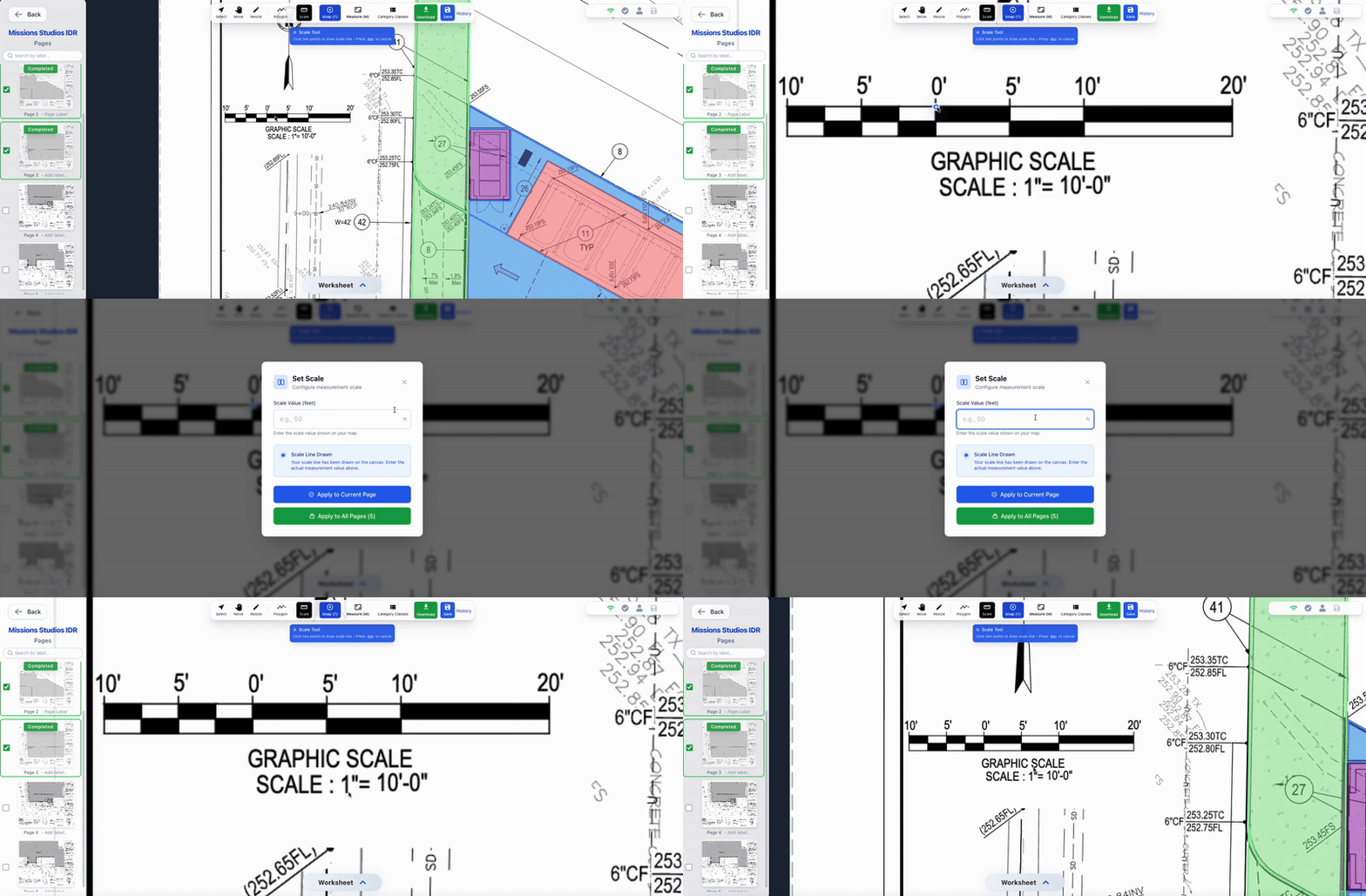
Set the scale in seconds using a known distance or a graphic scale on the sheet. The scale is saved per page so every measurement stays accurate.
- Click two points with a known distance
- Works with printed graphic scales
- Saved per page
- Works with both metric and imperial
Metric & Imperial Support
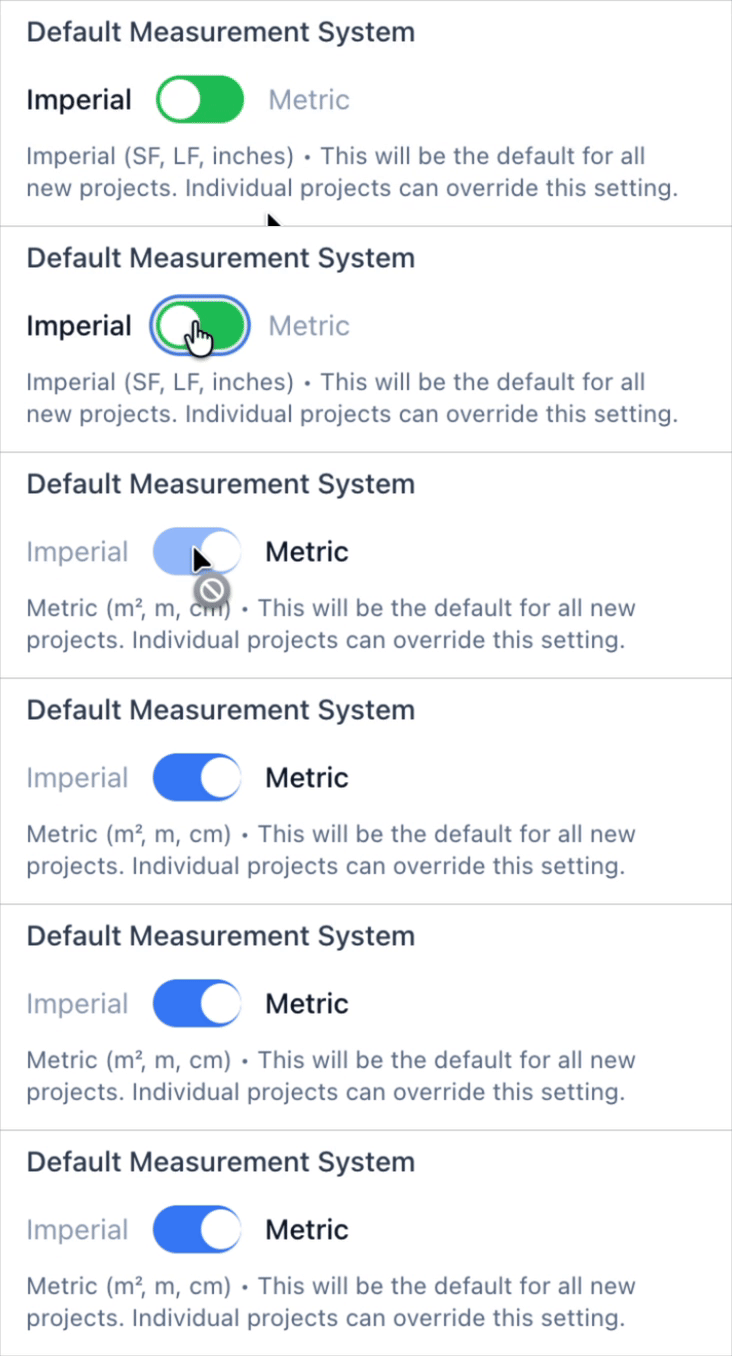
Choose your preferred measurement system for each project. Switch between Imperial (SF, LF, inches) and Metric (m², m, cm) units. Set a default system for all new projects, or override it per project.
- Imperial: Square Feet (SF), Linear Feet (LF), inches
- Metric: Square Meters (m²), Meters (m), Centimeters (cm)
- Set default system for new projects
- Override per project as needed
Count Tool
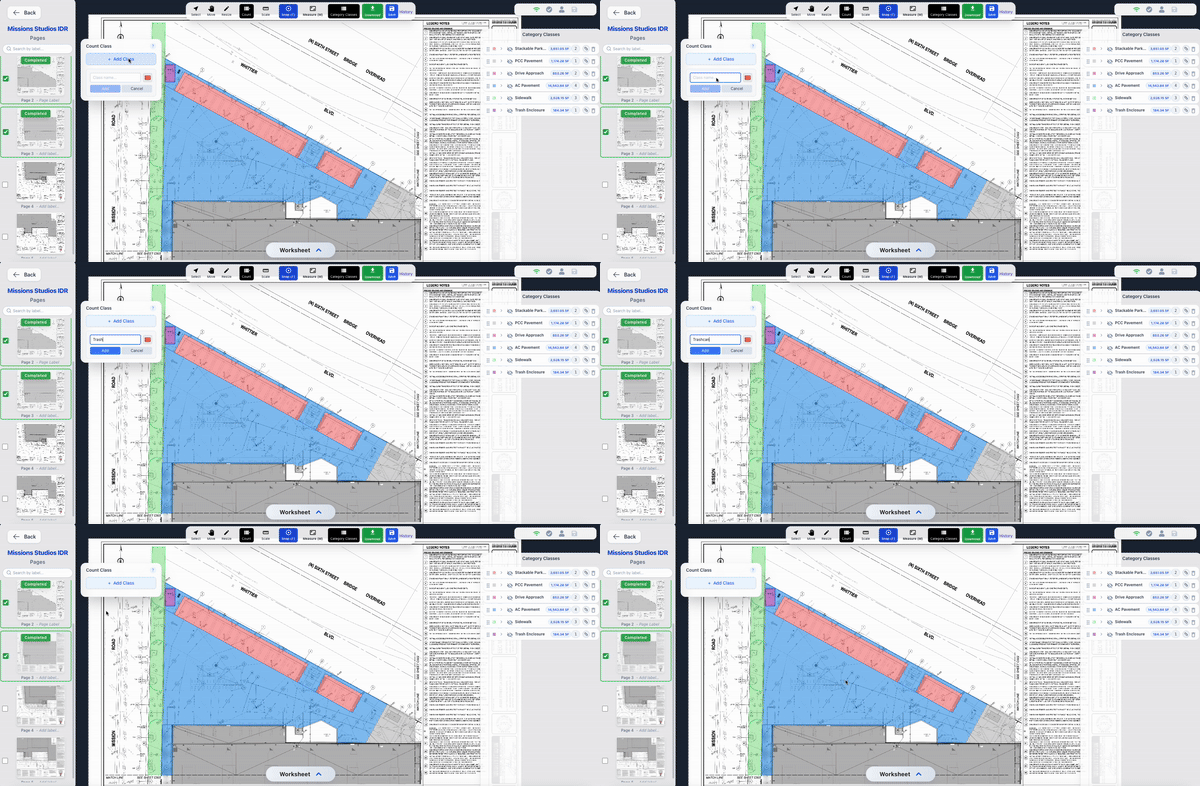
Click to place markers for inlets, fixtures, or other items. Totals update by class—no spreadsheets needed.
- One‑click placement
- Automatic totals by class
- Color‑coded markers
- Great for structures, signs, fixtures
Worksheet
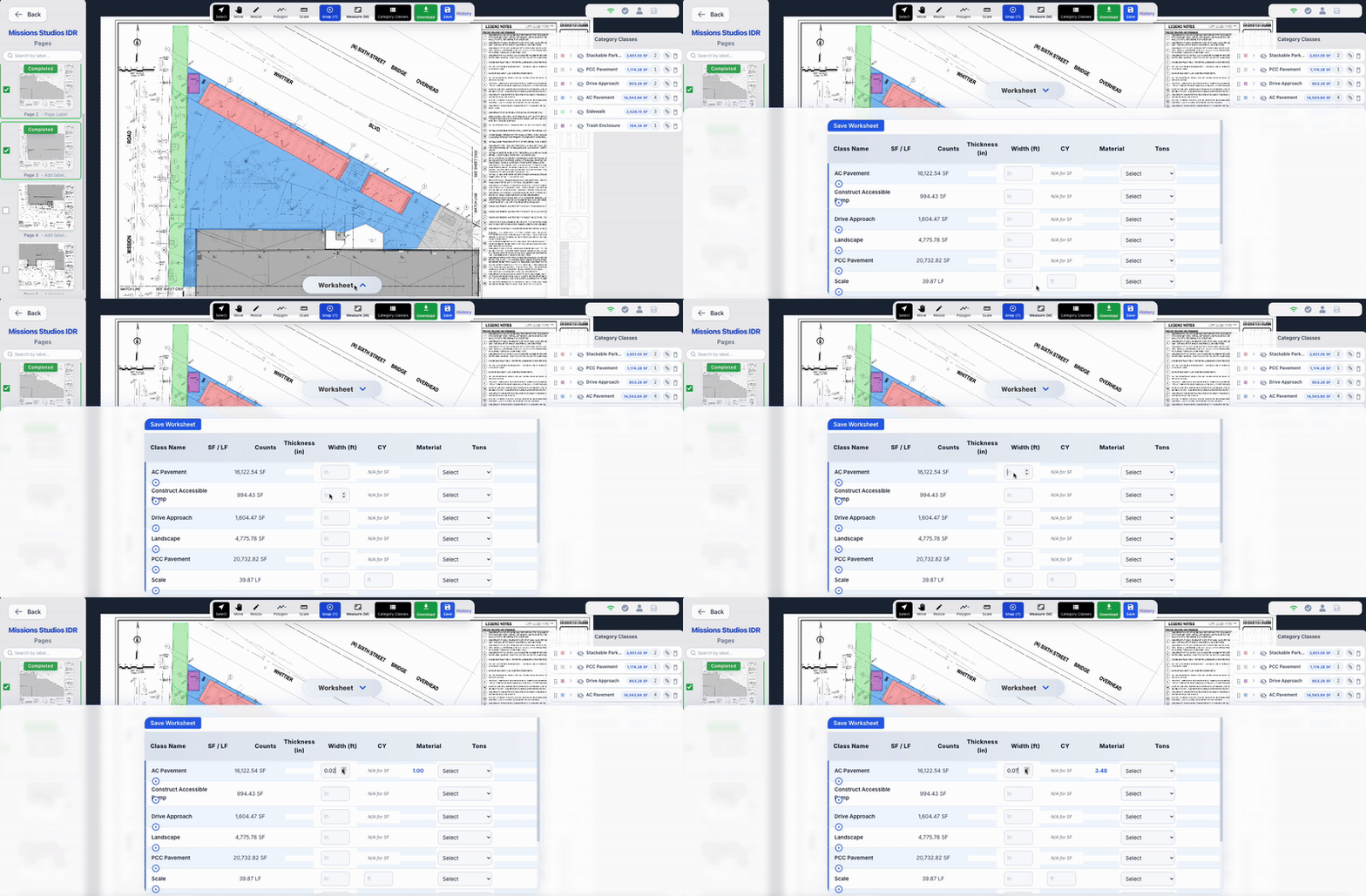
See SF/LF or m²/m by class and page with clean, running totals. Export a tidy CSV with quantity and units in separate columns.
- SF/LF or m²/m totals by class and page
- Separate QTY and unit columns in CSV
- Optional tons using material density
- Instant export for bids and reports
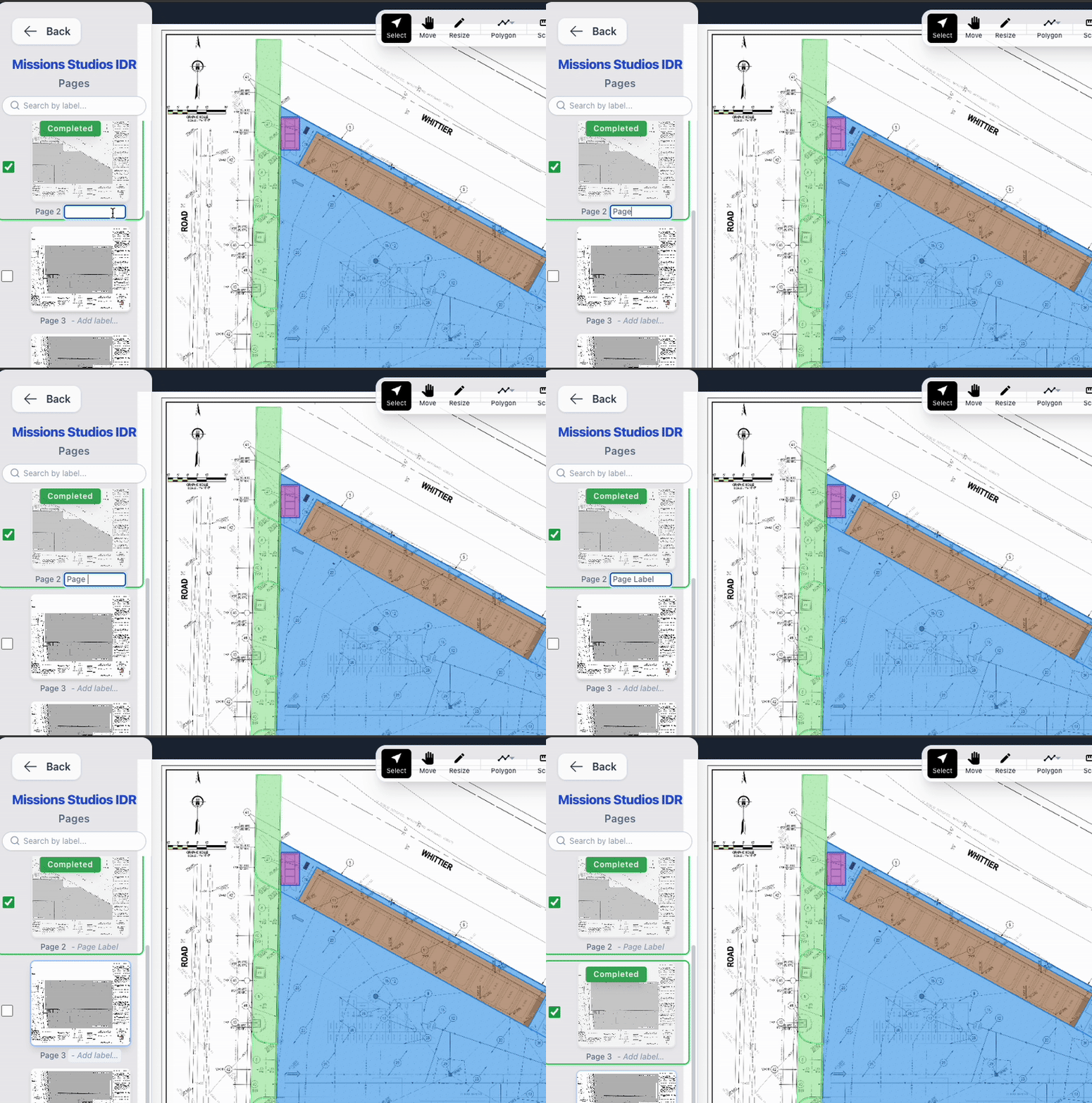
Page Labeling
Give every page a clear name—structures, parking, details—whatever works for you. It makes navigation and exports easy to understand.
- Inline rename in the page list
- Status tags (Completed, In Progress)
- Faster navigation across large plan sets
- Clearer deliverables for teams and clients
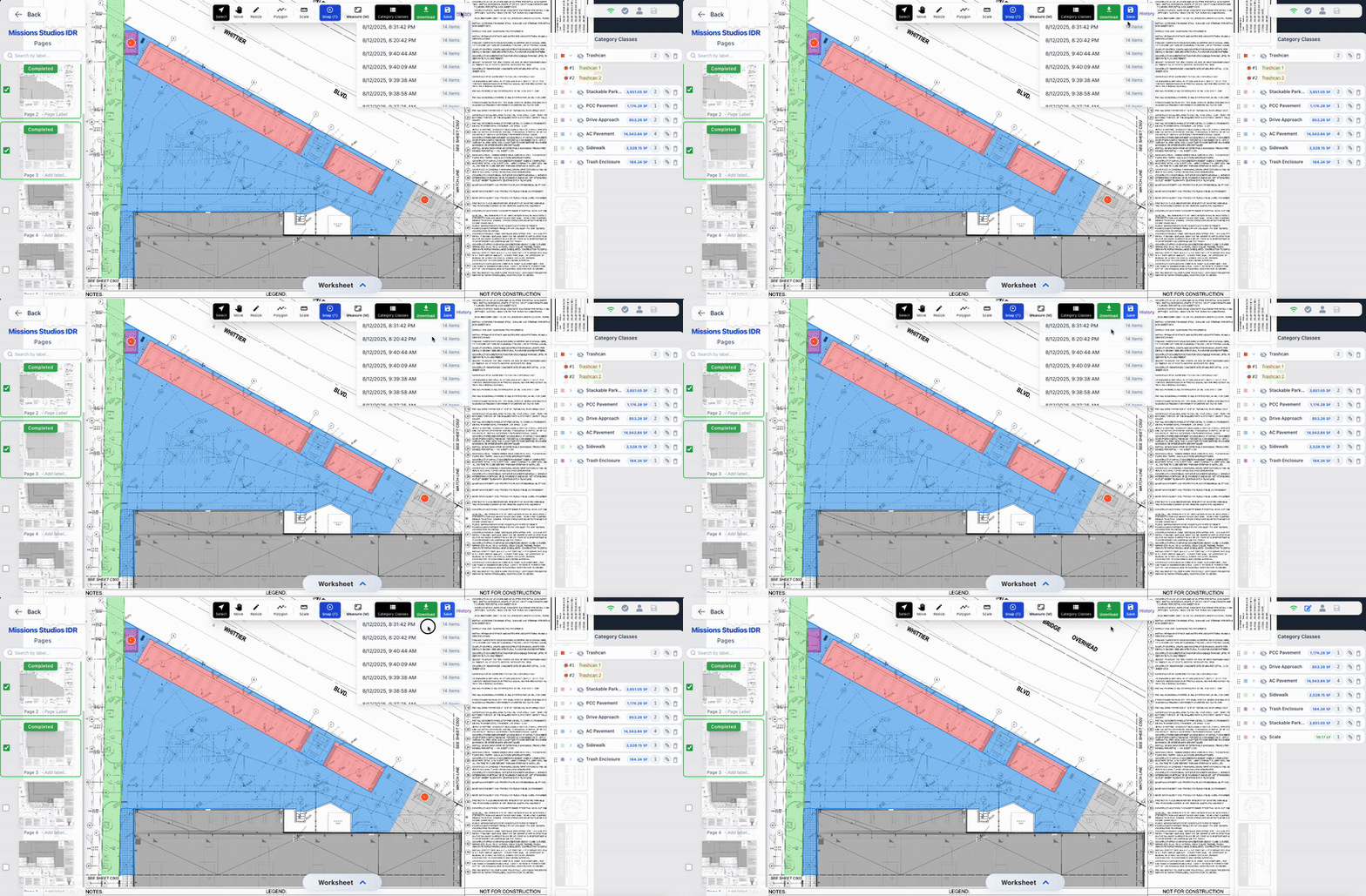
History & Versions
Try ideas without worry. Version history saves snapshots with timestamps, so you can roll back whenever you need.
- Timestamped save points
- One‑click restore
- Great for reviews and what‑if scenarios
- Peace of mind on deadlines
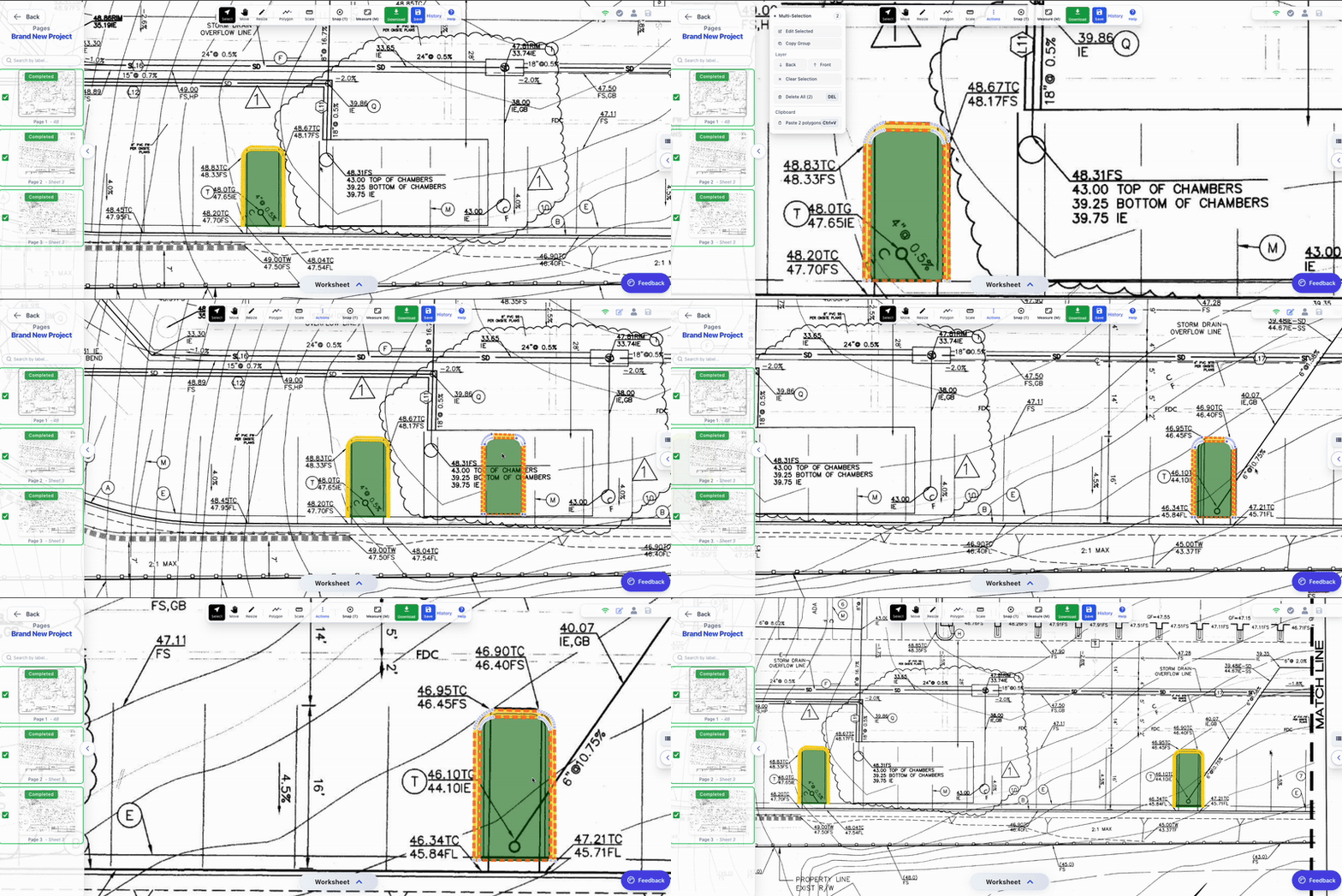
Group Copy & Paste
Paste repeatable shapes to save hours of redrawing. Select multiple polygons, copy with Ctrl+C, then paste with Ctrl+V. Click and drag to reposition the entire group anywhere on your plan.
- Paste repeatable shapes instantly
- Multi-polygon selection and copying
- Click and drag to reposition groups
- Batch undo removes all pasted shapes
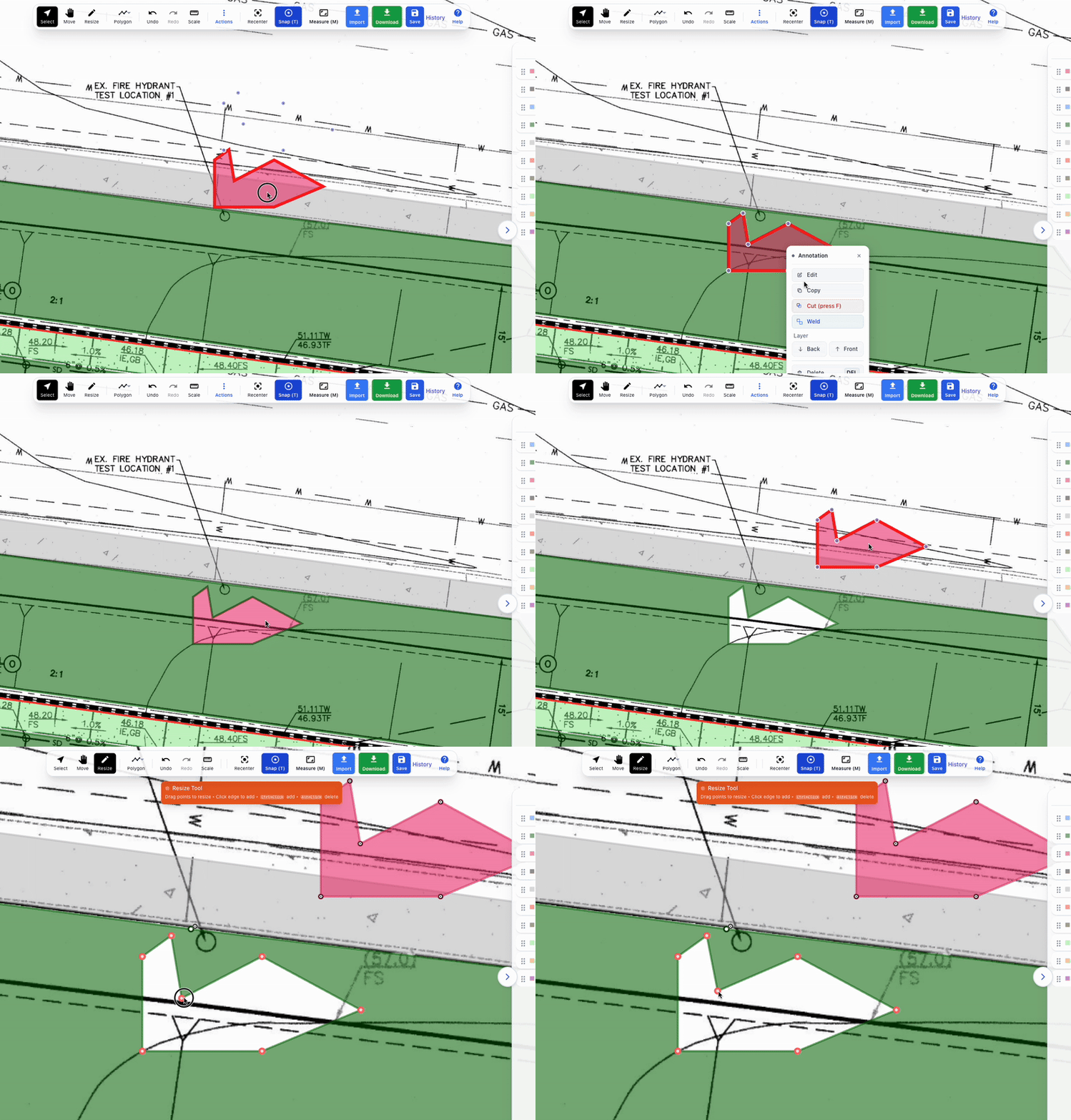
Cut and Weld
Perform advanced polygon operations with cut and weld tools. Cut holes in polygons or weld multiple shapes together for complex takeoff calculations.
- Cut holes in existing polygons
- Weld multiple shapes together
- Maintain accurate area calculations
- Perfect for complex site layouts
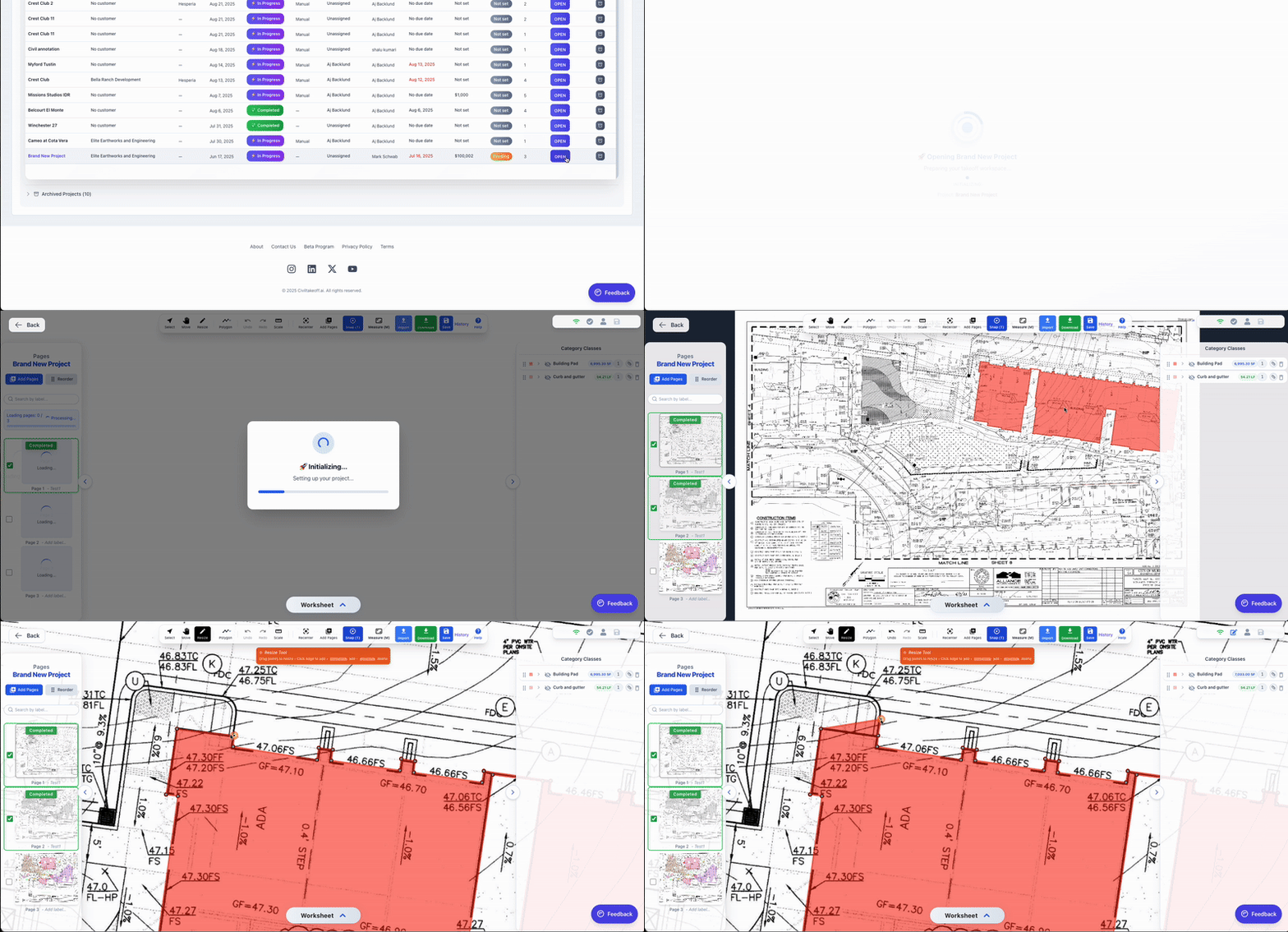
Fast Project Load
Projects load instantly as pages stream in from the server. No more waiting for large files to download—start working immediately while the rest loads in the background.
- Instant project access
- Background page loading
- Start working immediately
- No waiting for large files
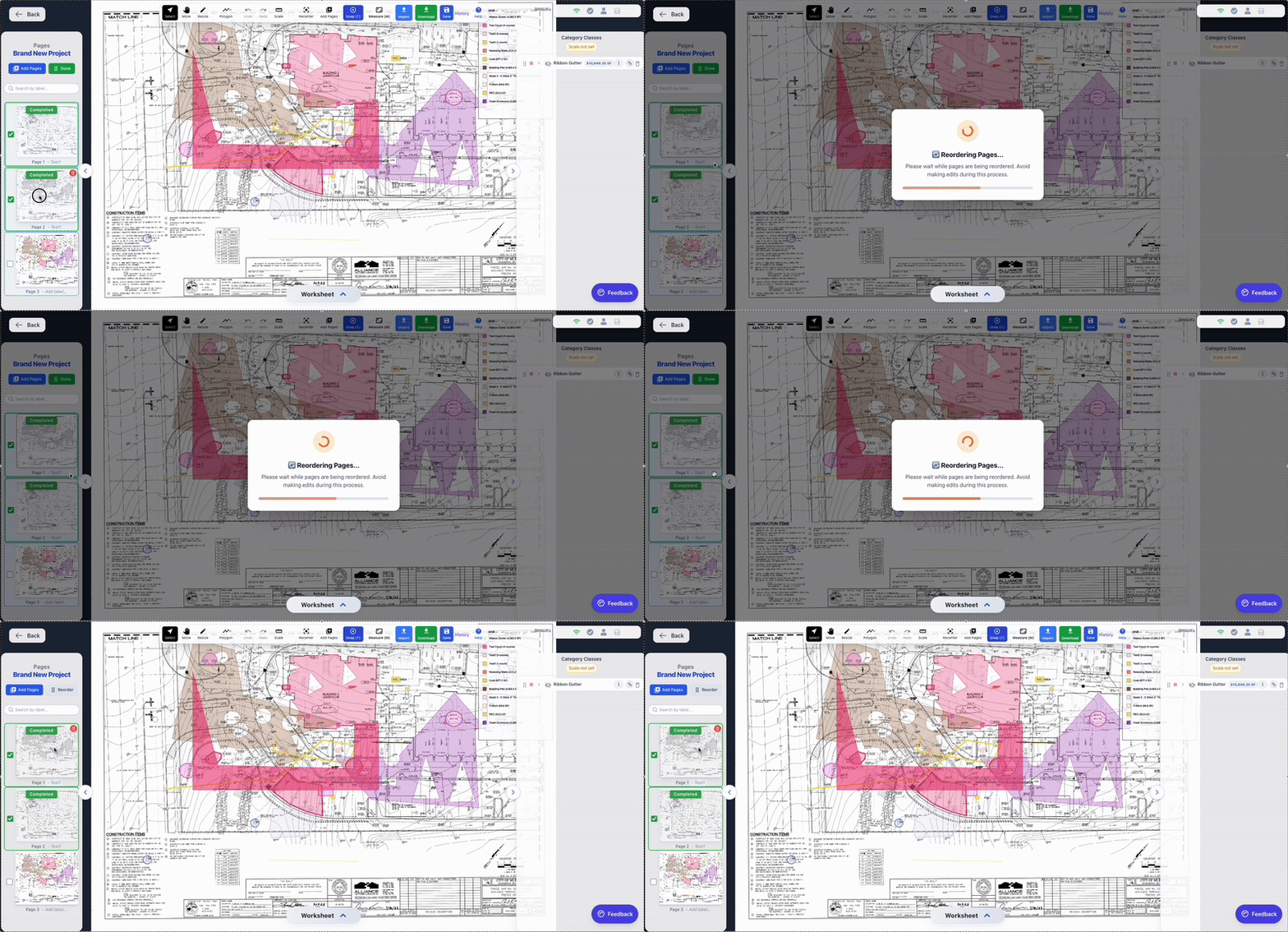
Re-arrange Pages
Drag and drop pages to reorder them within your project. Organize your plan set exactly how you want—by structure, by phase, or by priority.
- Drag and drop page reordering
- Organize by structure or phase
- Logical plan set organization
- Easy navigation and workflow
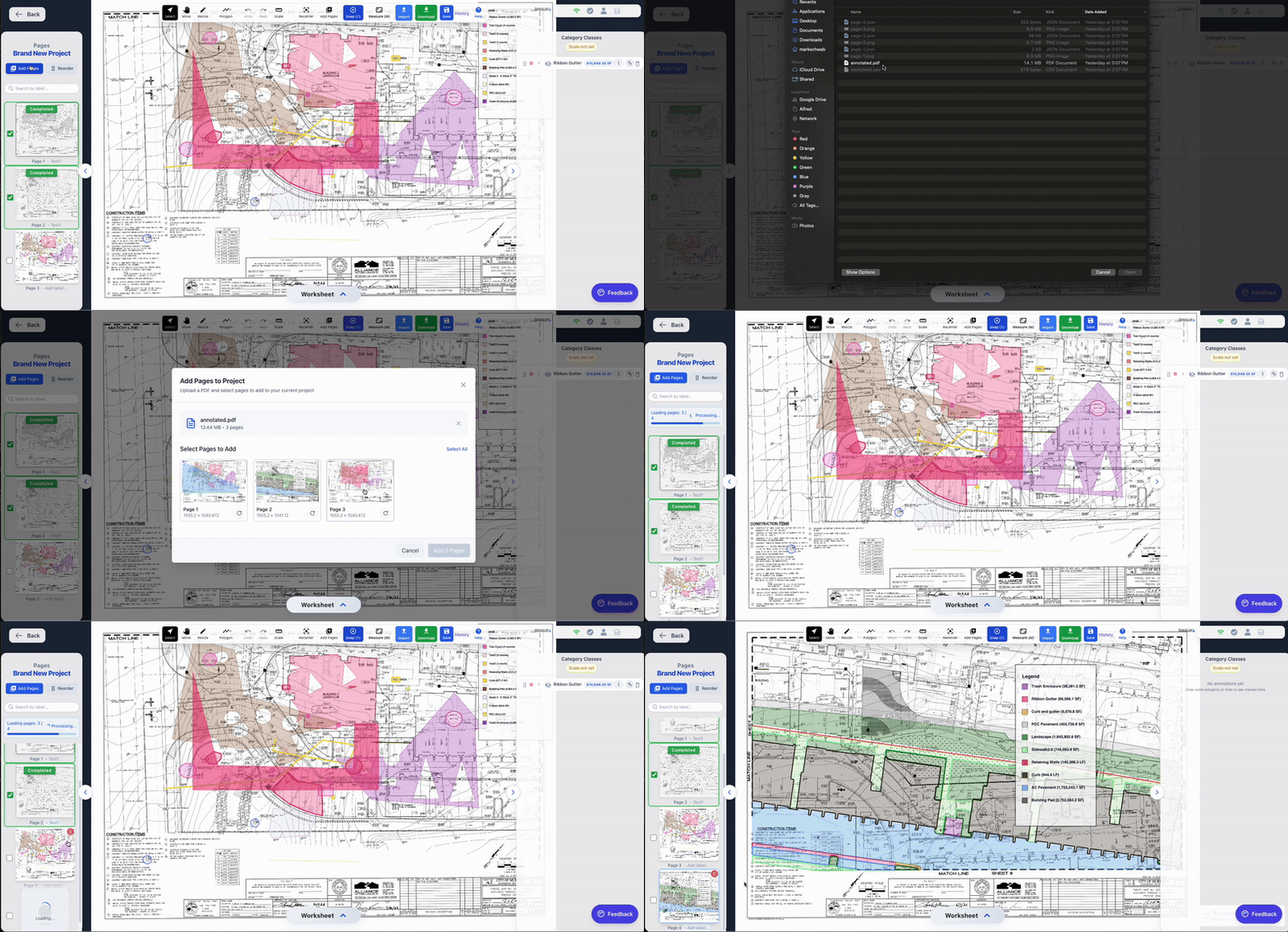
Add Pages
Add new pages to your project anytime. Upload additional PDFs, insert details, or add supplementary drawings to keep everything in one organized project.
- Add pages to existing projects
- Upload additional PDFs
- Insert detail drawings
- Keep everything organized
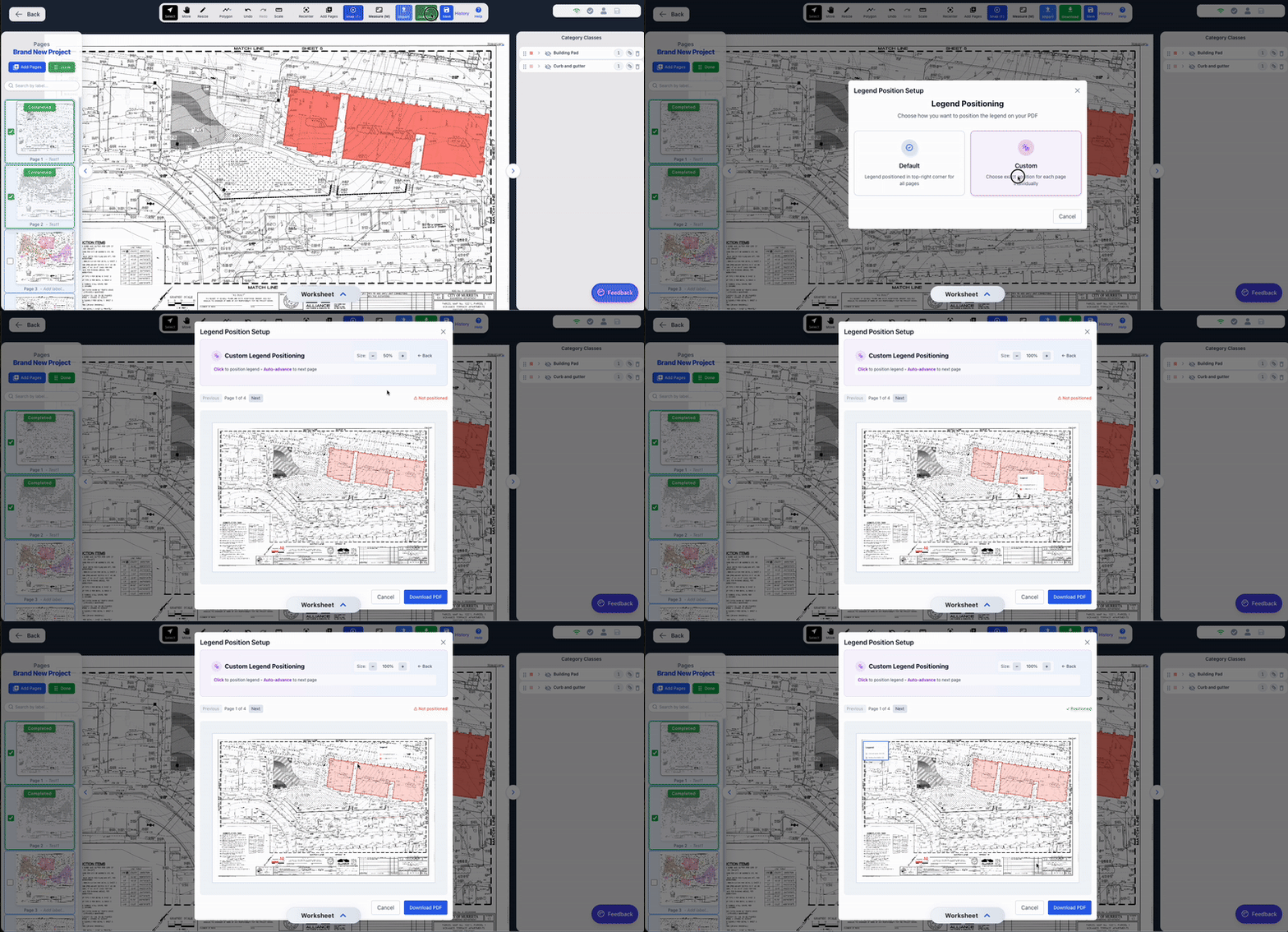
Custom Legend Placement
When exporting pages, customize the size and position of the legend. Place it where it works best for your plans—top, bottom, or anywhere on the page.
- Customize legend size and position
- Flexible placement options
- Professional-looking exports
- Works with any page layout
Frequently Asked Questions
Everything you need to know about digital takeoff tools and construction estimating
Still have questions?
Can't find what you're looking for? Our team is here to help.
Ready to move faster?
Start creating professional takeoffs today - free to get started.