Pursuit is here. And your takeoff tool can now trace the drawing for you.
Two releases for the people who price and chase the work: Pursuit, a CRM built around how bidding actually works, and automatic tracing that follows the drawing's own linework.
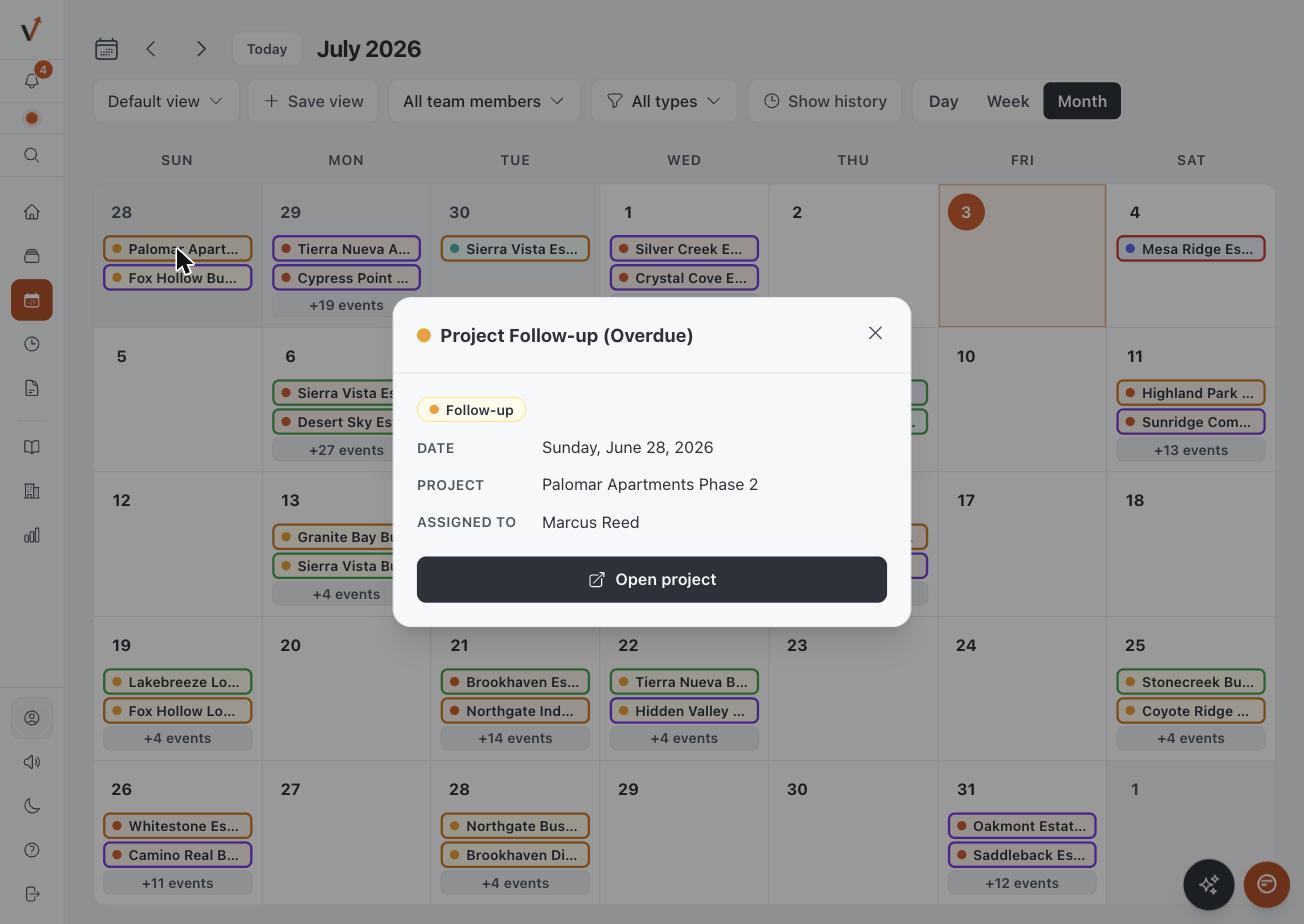
Every bid is really two jobs. There is the pursuit: the invite, the RFIs, the vendor quotes, the follow-up call you keep meaning to make. And there is the takeoff: an evening of clicking your way along curb lines and building footprints, one vertex at a time.
Today we are shipping something for both halves.
Meet Pursuit
If your bids live in spreadsheets, inboxes, and a shared drive, you already know the failure mode. The bid date is in one tab. The plan set is in a folder. The GC's last email is in somebody else's inbox. Bids don't slip because the work is hard. They slip because the work is scattered.
Generic CRMs don't fix this. They are built for sales funnels, and a bid is not a funnel. You end up bending your process to fit software built for someone else's job.
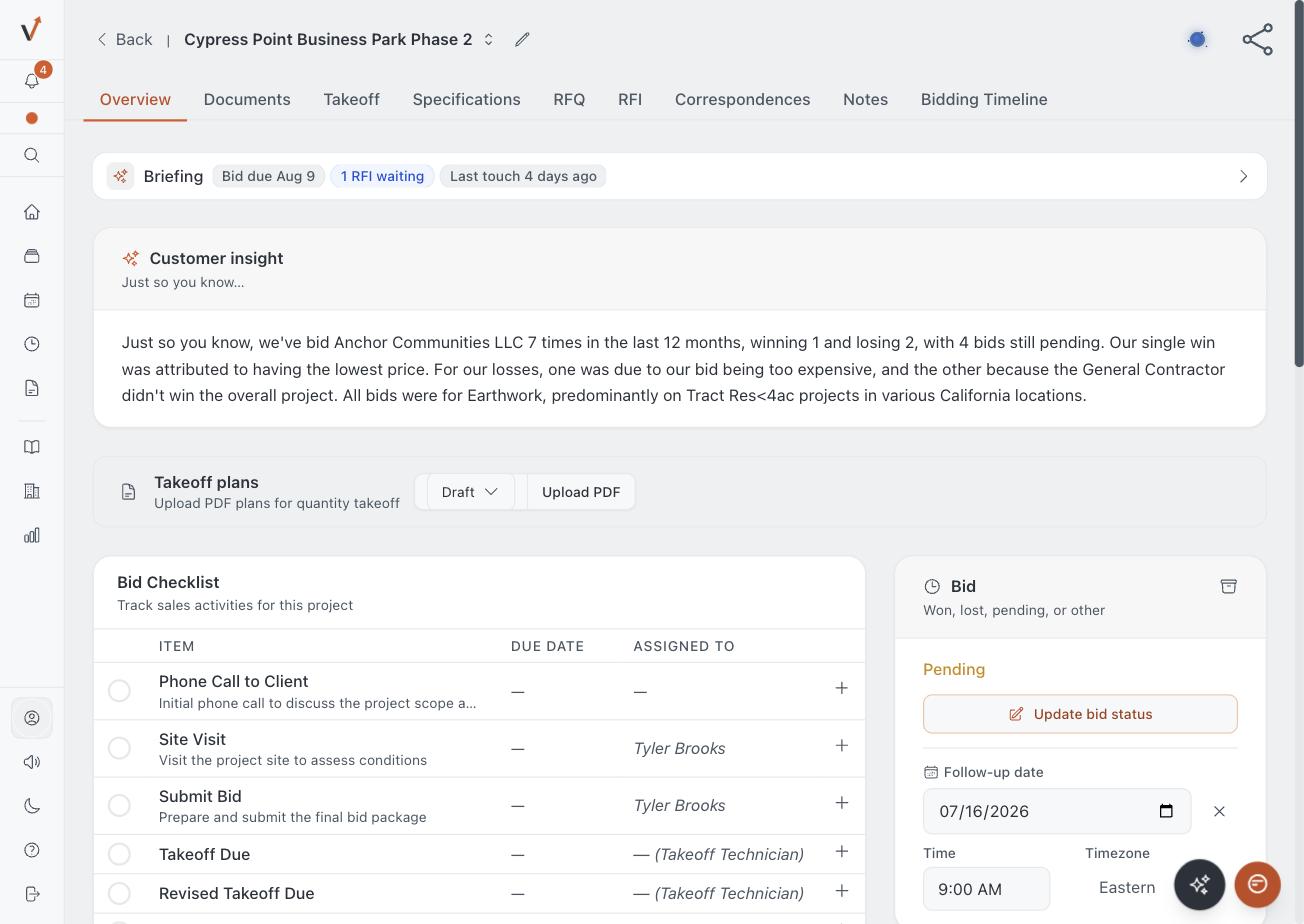
Pursuit is a CRM built around how bidding actually works: bid dates, RFIs, RFQs, vendor quotes, follow-ups, and your real win rate by customer. Every pursuit gets one hub that holds the whole story of the bid, from the invite to the decision.
Here is what that looks like in practice:
- One place per bid. The plan set, the soils report, the quote thread, and the bid date live together. Save an email to its project straight from Gmail or Outlook, so the record builds itself as you work.
- RFQs and vendor quotes that stay attached to the bid. Send requests, track who has responded, and follow up before the bid date instead of after it.
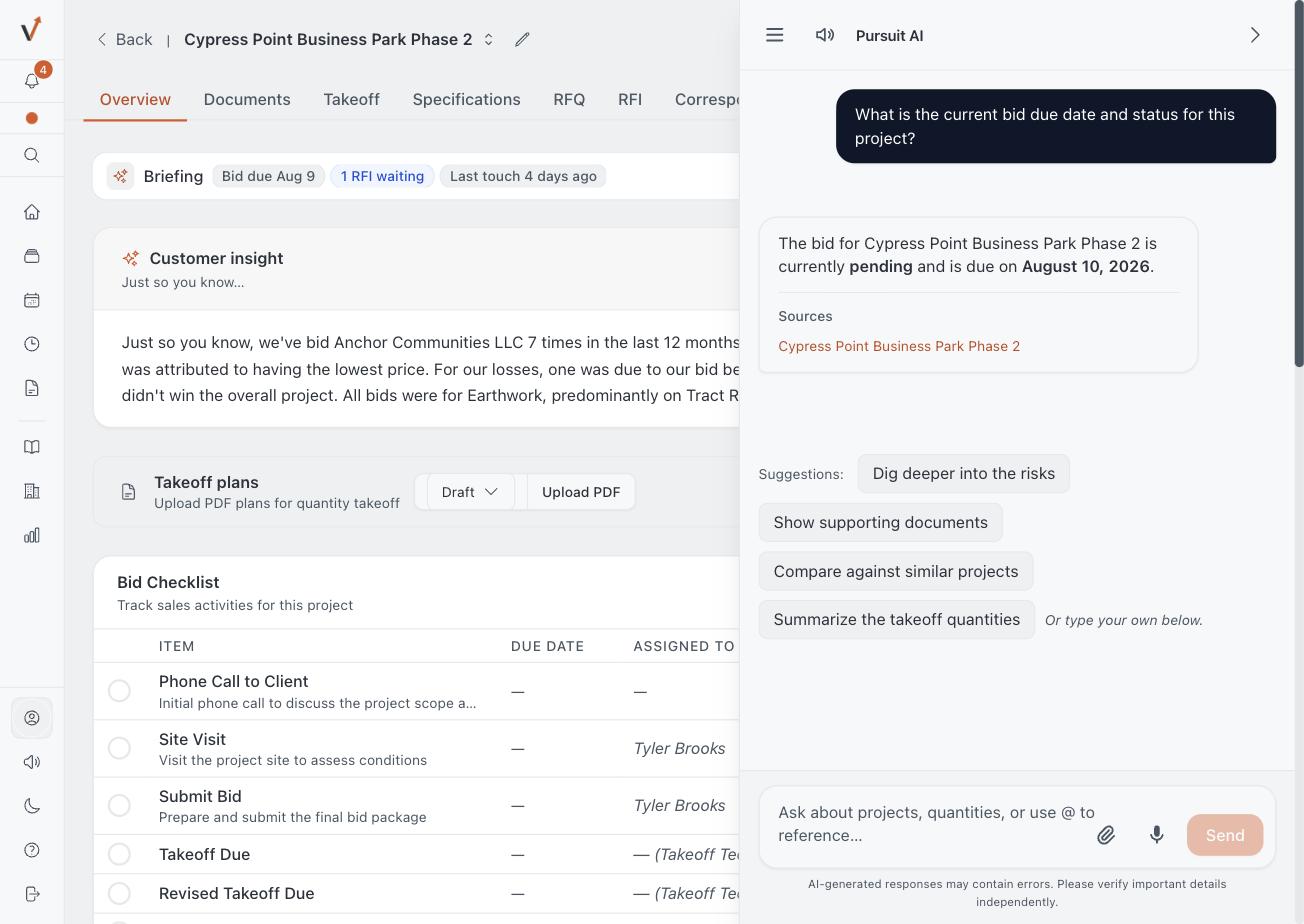
- Win/loss you can act on. Your historical hit rate by customer, from your own results. When a GC invites you to bid, you can see in one glance whether that relationship wins work or just consumes estimates.
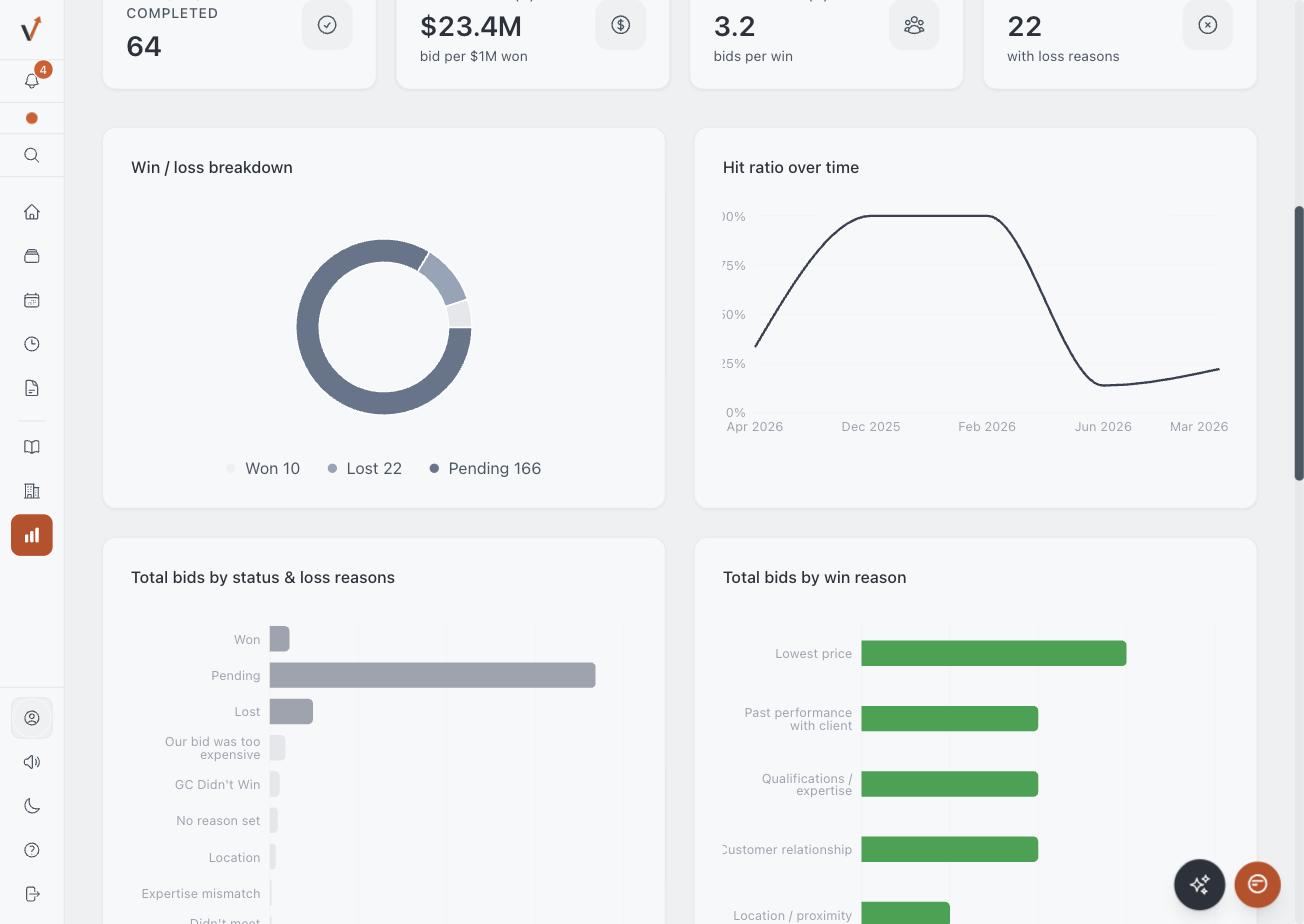
Ask the project anything
Pursuit's Intelligence tier adds an AI that has read everything in the pursuit. Ask what the paving section calls for, and you get an answer with a citation to the exact sheet and page it came from. Click the citation and check it yourself.
That last part matters. The AI shows its source, every time. It drafts your RFQs and builds your reports, but it never decides the bid. You do.
Founding access
Pursuit is new, so we will be straight with you: there are no customer logos on this page yet, and we are not going to invent any. What we can offer is the deal that comes with being early.
Pursuit launches with founding pricing, locked for two years: Pro+ Intelligence (CRM + AI) at $79/mo or $790/yr, and Pro+ (CRM only) at $47/mo or $470/yr. No seat minimum. Month to month or annual. Cancel anytime.
The 30-day free trial runs the full Intelligence tier, so you experience the AI from day one. At the end you keep it, step down to Pro+, or walk away.
Trace the drawing, not your patience
Now for the takeoff half.
Here is something most people don't know about their plan sets: a PDF exported from CAD still carries the drawing's actual geometry underneath the picture. Every line the drafter drew is in the file, exact to the vertex. Takeoff software has mostly ignored it and made you re-click all of it by hand.
Bidscreen Cloud now reads it.
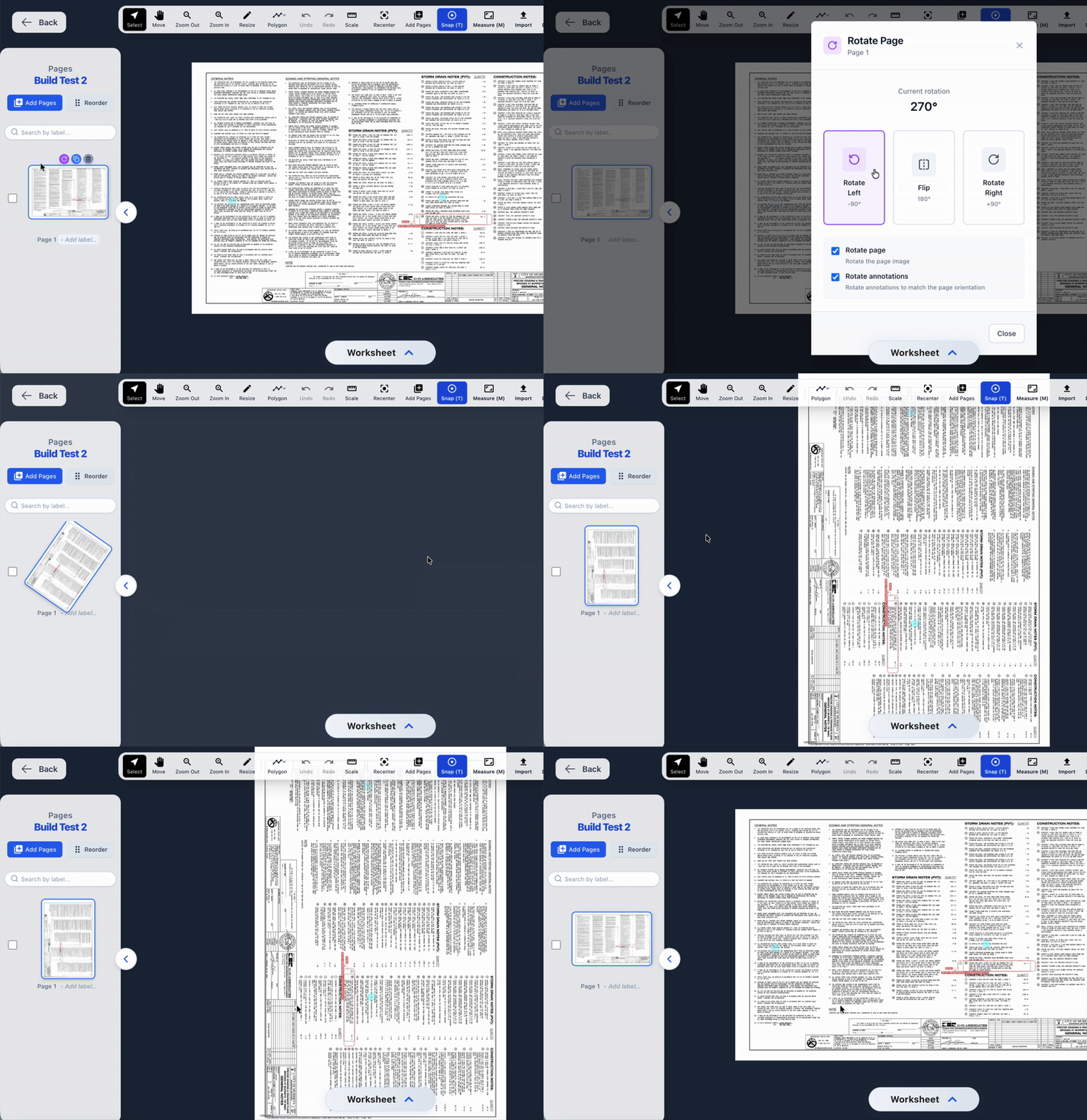
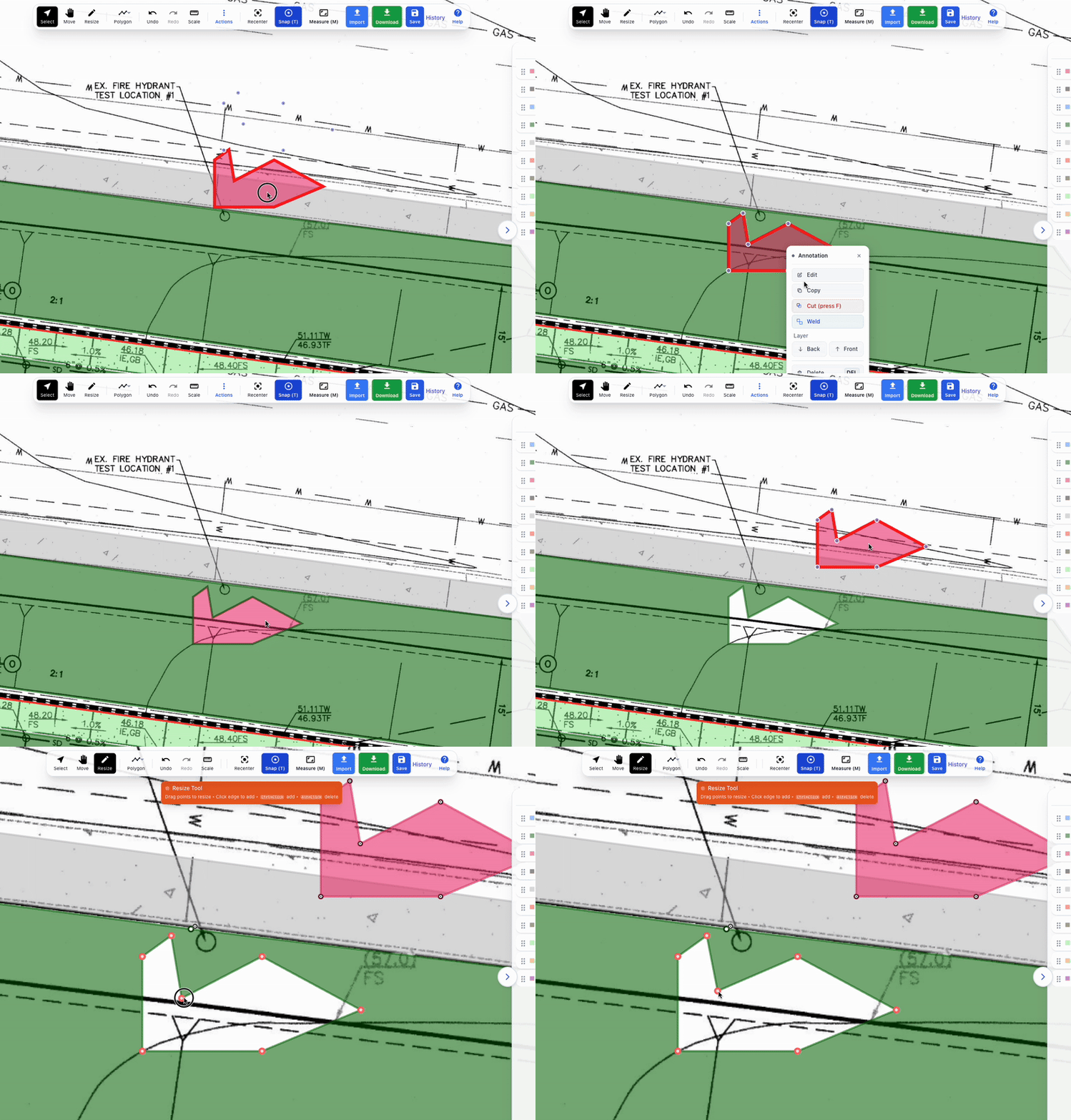
Prepare a sheet, then hold V while you draw a line or an area. The tool routes along the drawing's own linework from your last point to your cursor, around corners and through connected segments. Click once and the whole run drops in as measured linework. Release V and you are back to clicking manually, exactly where you left off.
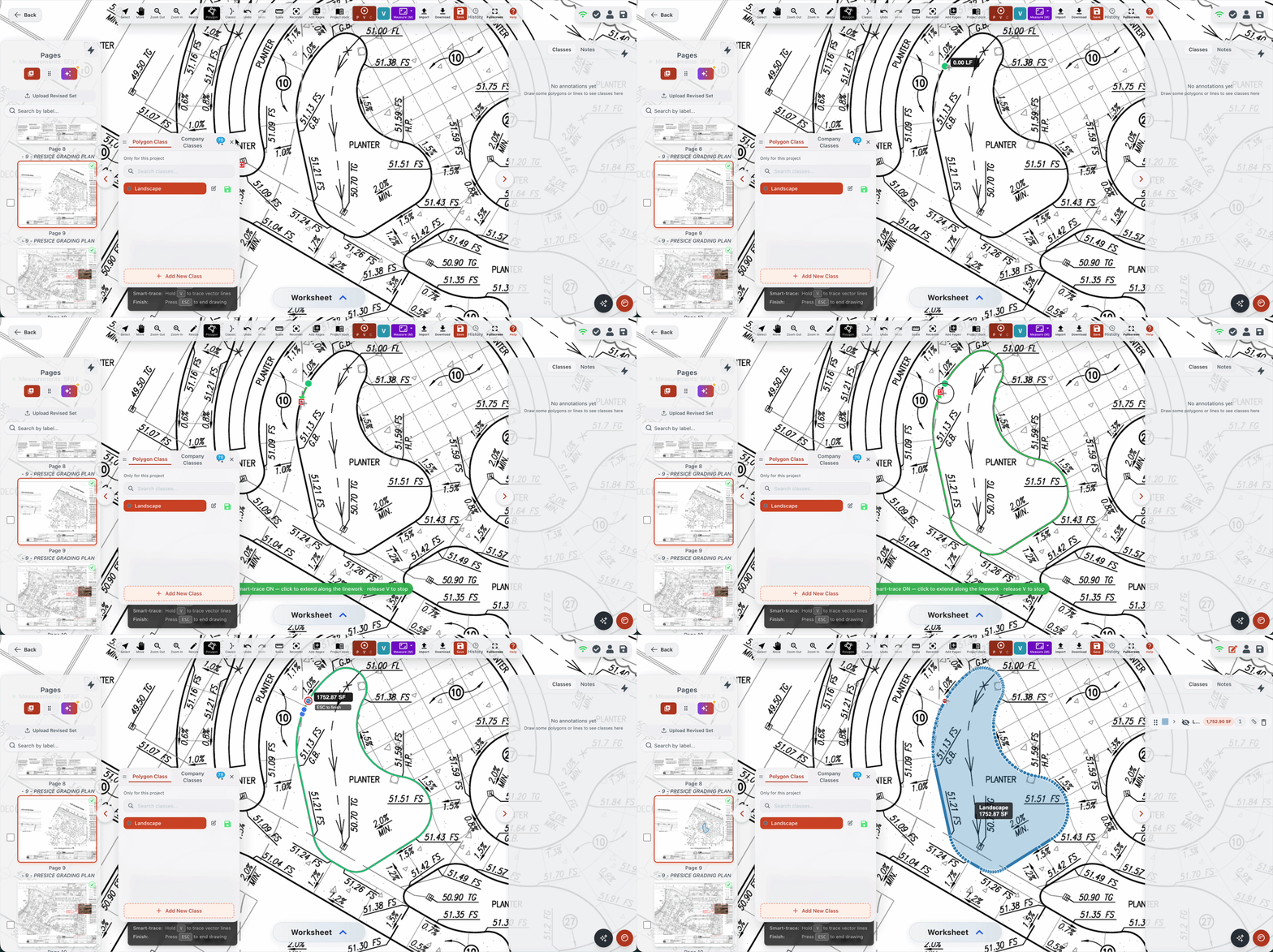
You stay in control the whole time. The trace extends your line; it never finishes the shape for you. Where the drafter's linework breaks, you click through the gap and pick the trace back up on the other side.
The same release brings the rest of the vector toolset:
- Snapping to the real drawing. Endpoints, corners, intersections, and the lines themselves, at any zoom. Press C while drawing to snap to corners only.
- Select a whole line at once. Hold V on the select tool, hover any line on the sheet, and the entire run highlights. One click takes it.
- Fill an enclosed area. Hover a closed region with the Smart Area tool and it fills as a measured area. Click to combine adjacent pieces into one shape.
One honest caveat: this reads vector data, so it needs vector sheets. Most CAD-exported plan sets qualify. Scanned or photographed sheets don't carry linework to trace, and those still take the manual tools.
And to be clear about what this is not: there is no AI guessing where your lines go. This is the drawing's own geometry, read straight from the file. When you trace a curb line with V held, you get the drafter's curb line, exact.
Vector tools are available on Pro plans and up. Already on Pro? Open a project, click the V button in the toolbar to prepare a sheet, and hold V on your next line.
Two halves, one job
We build so contractors are thriving, not just surviving. That means chasing fewer dead-end bids and spending less of your evening clicking vertices. Pursuit handles the chase. The trace handles the clicks. The winning is still yours.
Share this article
Help others discover this content